NEWYou can now listen to Fox News articles!
If you have ever waited for a login code that never showed up, you already know the pain. You type in your password. Microsoft asks for a code. Then you stare at your phone like it owes you money. Now Microsoft wants to move even further away from that routine.
The company says it will phase out SMS codes as a sign-in and account recovery method for personal Microsoft accounts. Instead, Microsoft wants more people to use passkeys and verified email. This affects anyone who uses a personal Microsoft account. That can include Outlook, OneDrive, Windows, Xbox or Microsoft 365 users.
That may sound like another tech company forcing you to change your habits. In this case, though, there is a real security reason behind it. Text-message codes helped make account logins safer for years. They were never built, however, to protect your digital life. Crooks have learned how to abuse them, steal them and trick people into handing them over.
SIM SWAP SCAM DRAINED FLORIDA WOMAN'S BANK ACCOUNT IN MINUTES
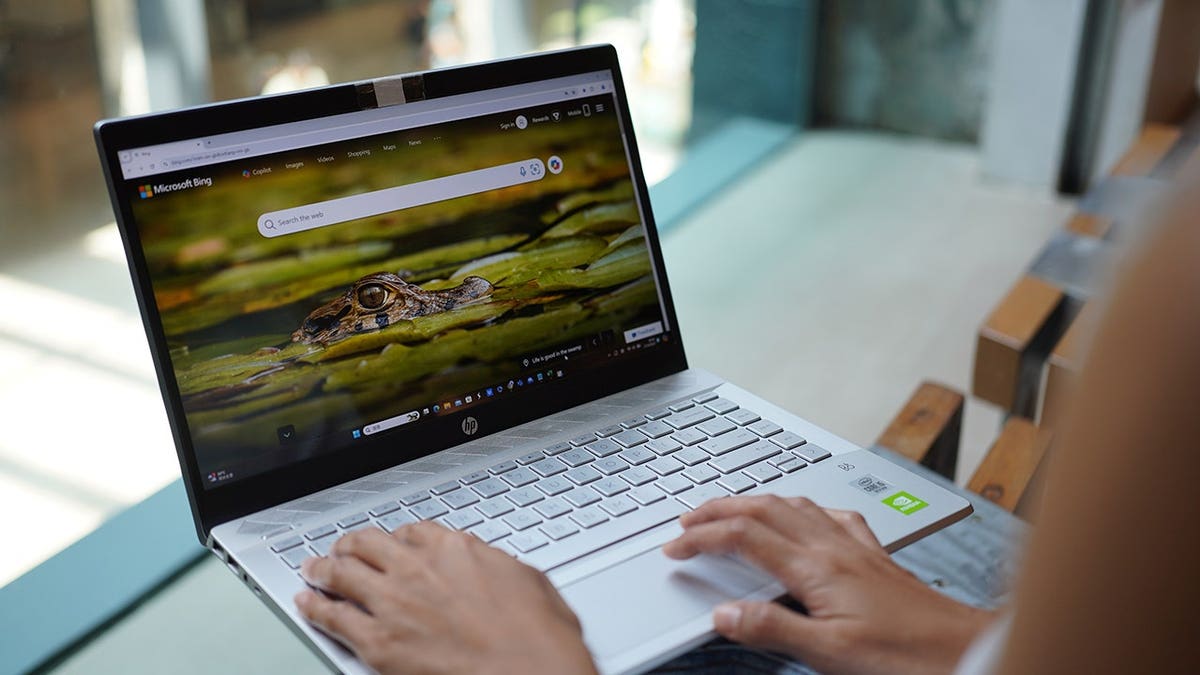
Microsoft is phasing out SMS codes for personal account sign-ins and recovery, pushing users toward passkeys and verified email for stronger security. (Photo Illustration by Serene Lee/SOPA Images/LightRocket via Getty Images)
Join CyberGuy Live: Lock Down Your Phone in 30 Minutes (Saturday, June 13, 10 am ET)
Your phone holds your email, passwords, photos, banking apps and personal data. In this free, live online class, Kurt the CyberGuy will walk you step by step through simple phone security fixes you can do in real time. You’ll learn how to improve your privacy settings, spot the latest phone scams, use trusted security tools and walk away with a simple checklist to stay protected. Register here: CyberGuyLive.com.
Why Microsoft is moving away from SMS codes
Microsoft says SMS authentication has become a major source of fraud. Text messages can be intercepted, stolen through SIM-swap scams or captured through phishing attacks. That creates a real problem because your Microsoft account can unlock a lot. It may connect to Outlook, OneDrive, Xbox, Windows, Microsoft 365 and saved payment details.
Once a criminal gets into that account, the damage can spread fast. They may read your email, reset other passwords or look for private files stored in the cloud. SMS codes once felt like a strong extra layer. Today, they can give people a false sense of security.
A scammer may call your phone carrier and try to move your number to another SIM card. They may also send a fake Microsoft login page that asks for your code. If you type it in, the scammer can use it right away. That is why Microsoft wants users to move toward passkeys. Microsoft has not listed a universal cutoff date for every personal account. However, it says users who still rely on SMS will be guided to add a verified email and set up a passkey.
HOW SIM SWAPPING LED TO A $1.8M CYBER FRAUD CASE
What a Microsoft passkey does
A passkey lets you sign in without typing a traditional password. Instead, you use something already tied to your device. That may be your face, fingerprint, device PIN or a physical security key.
Here is the key difference. A passkey uses cryptography behind the scenes. One part stays with Microsoft. The private part stays on your device or inside your password manager. A scammer cannot simply trick you into reading a passkey over the phone.
That makes passkeys much harder to steal than SMS codes. They can also feel easier once you set them up. You may be able to sign in with your fingerprint or face instead of waiting for a text that may never arrive.
MICROSOFT CROSSES PRIVACY LINE FEW EXPECTED
Why Microsoft passkeys may feel confusing at first
Security upgrades can be annoying. SMS codes are familiar. Most people know how they work. Even when they are clunky, they feel simple. Passkeys can feel confusing at first. You may wonder where the passkey lives. You may also wonder what happens if you lose your phone or whether you need one for every device.
That confusion is real. It can get worse if you set up a new Windows PC, use a shared computer or switch devices often. The good news is that Microsoft says verified email will remain part of the account recovery process. So you should make sure your backup email address is current before you run into a lockout.
How to set up or add a passkey to your Microsoft account
Before you start, use a device you trust. Also, make sure your browser and operating system are updated.
- Go to Microsoft's account security page at account.microsoft.com/security and sign in.
- Under Account Security, select Manage how I sign in.
- Under Ways to prove who you are, look for Use a passkey.
- If you already see a passkey listed, such as Apple iCloud Keychain, your account already has one set up.
- To add another passkey or sign-in method, select Add another way to sign in to your account.
- Choose Use a passkey or Face, fingerprint, PIN or security key, depending on the wording you see.
- Follow the prompts on your device.
- Choose where you want to save the passkey, such as Apple iCloud Keychain, a password manager, your phone, your computer or a physical security key.
- Finish the setup process and confirm the passkey works.
Note: Microsoft's support pages may say Advanced Security Options, or Add a new way to sign in or verify. However, in the current Microsoft account dashboard, many users may see Manage how I sign in and then Add another way to sign in to your account instead.
AMERICA'S MOST-USED PASSWORD IN 2025 REVEALED
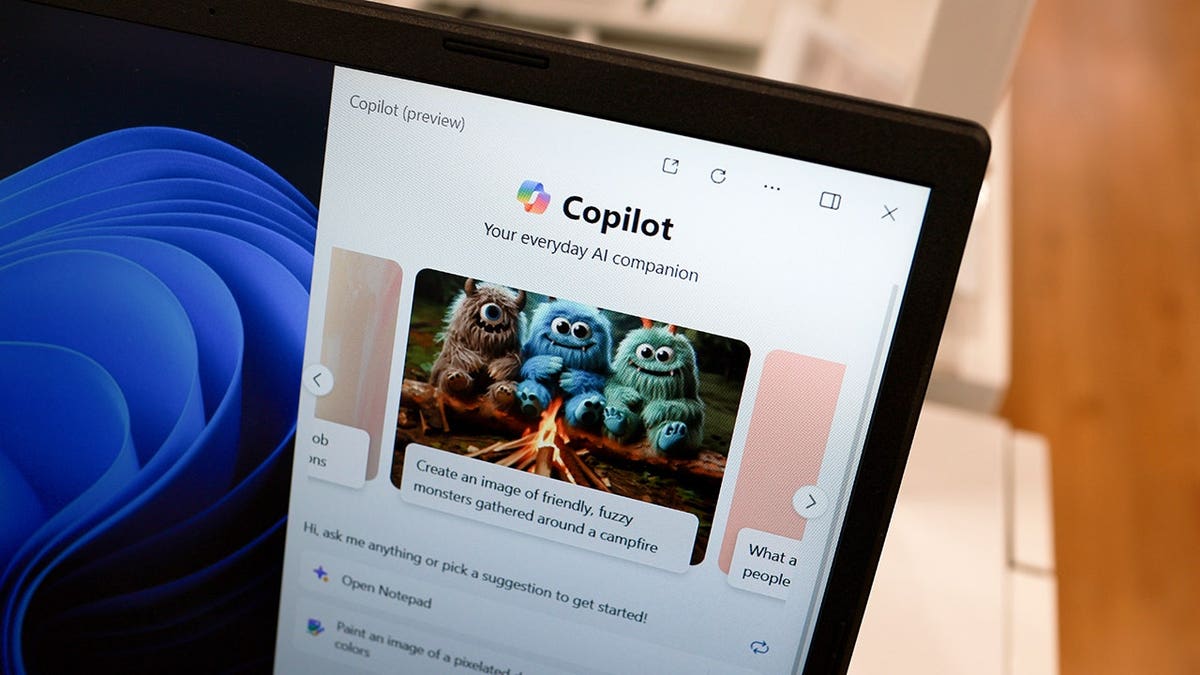
The tech giant says text-message authentication is increasingly vulnerable to phishing attacks, SIM-swap scams and account takeovers. (Joe Raedle/Getty Images)
Microsoft account security steps to take now
Do not rush through this change. A few minutes of cleanup can save you a big headache later.
1) Add a backup email you still use
Your recovery email should be an account you can access today. If it points to an old work email or a forgotten inbox, update it.
2) Remove old phone numbers
Check whether your Microsoft account still lists an old number. If it does, remove it or replace it with your current number.
3) Turn on Microsoft Authenticator
Microsoft Authenticator can give you another secure way to verify your identity. It can also help if you have trouble with SMS or email.
4) Save recovery codes safely
If Microsoft offers backup codes, store them somewhere secure. Do not keep them in a plain note called "Microsoft password."
5) Use a strong password manager
Even if you move to passkeys, a password manager still helps. It can store strong passwords, flag reused logins and help you avoid fake sign-in pages. Check out the best expert-reviewed password managers of 2026 at CyberGuy.com.
Passkeys allow Microsoft users to sign in with a fingerprint, face scan, device PIN or security key instead of waiting for a text code. (Jaap Arriens/NurPhoto via Getty Images)
Kurt's key takeaways
Microsoft's move away from SMS codes may feel inconvenient at first. However, the old text-code system has too many weak spots. A passkey will not make you invincible. No security tool can promise that. Still, it can make account theft much harder for scammers who rely on fake login pages, stolen codes and SIM-swap tricks. If your Microsoft account holds years of email, family photos or work files, this change deserves your attention. Set up a passkey, verify your backup email and remove old recovery options.
Would you trust a text message to protect your most important account, or has that comfort become the risk? Let us know by writing to us at CyberGuy.com.
CLICK HERE TO DOWNLOAD THE FOX NEWS APP
Sign up for my FREE CyberGuy Report
- Get my best tech tips, urgent security alerts and exclusive deals delivered straight to your inbox.
- For simple, real-world ways to spot scams early and stay protected, visit CyberGuy.com – trusted by millions who watch CyberGuy on TV daily.
- Plus, you'll get instant access to my Ultimate Scam Survival Guide free when you join.
Copyright 2026 CyberGuy.com. All rights reserved.
Kurt "CyberGuy" Knutsson is an award-winning tech journalist who has a deep love of technology, gear and gadgets that make life better with his contributions for Fox News & FOX Business beginning mornings on "FOX & Friends." Got a tech question? Get Kurt’s free CyberGuy Newsletter, share your voice, a story idea or comment at CyberGuy.com.